Draw and model in 2D and 3D
Create sketches, dimensions and constrained profiles. Extrude, revolve, sweep and loft geometry; edit solids and meshes, and organise reusable parts with layers and dynamic blocks.
Loading...
Please wait while we load your content
Desktop 2026 + Web
Model the site. Connect the rigging. Plan the lift.
Bring CAD, crane anatomy, plant and steelwork, lifting equipment, load movement and technical reports into one workspace. Explore the current web tools or check the available desktop release for local work.
See the full capability →Desktop and web access are licensed separately. View the current options and availability below.

Work with Micky at LPP — £40 per hour plus VAT. View the service and download the client information pack.
Watch Lift Planner Pro
Follow site setup, crane configuration and rigging through to the technical lift plan. Then explore Team Chat, the practical training workspace and pricing options.
4 min 56 sec · British English narration · LPP Master programme preview
Welcome to Lift Planner Pro. In this walkthrough, we will follow the planning workflow, from the site and crane setup to the lift plan, team collaboration and practical training. The aim is to give your team a clear, reviewable picture of the proposed operation.
Start with your project and its site references. Import the available map context, then position buildings, roads and plant equipment around the working area. Check scale, coordinates and heights against the project evidence. Map context helps you organise the model, but the actual site conditions still need verification.
Next, select the crane by manufacturer and model. Review the documented ballast, boom, fly jib, offset and hoist rope options. Match the setup to the exact manufacturer information for the proposed duty. The catalogue keeps the configuration and its reference material close to the model.
Build the load and rigging arrangement. Position each lifting point, enter the centre of gravity, and configure the individual sling legs and their connections. Review the load evidence and accessory ratings. A clear three dimensional arrangement supports discussion, while the engineering checks remain a separate part of the planning process.
Open the equipment catalogue to explore shackles, chain blocks and lifting beams. Review the dimensions and source documents, then use the connection points to develop the arrangement. Keep the selected equipment consistent with the load schedule and the supporting technical information.
Use the crane controls to preview the planned positions, including boom movement, slew and hook travel. Work through the pick, movement and set stages with your team. Treat this as a visual sequence for review. Rated capacity and any utilisation display depend on the correct manufacturer duty evidence.
Bring the work into a technical lift plan. Review the plan and elevation views alongside the crane configuration, load and rigging schedules. Add the method steps, hazards, controls and revision details. Reconcile the document with the current model before sharing it for the required review and approval.
Now move into Team Chat. Choose the appropriate channel, such as Project discussion, and keep the conversation tied to the project and drawing revision. Use a private channel for confidential work. Clear messages help the team understand the question, the proposed change and who needs to respond.
Use the attachment control to share supporting files, and the shared resources panel to find channel material. Search the channel when you need an earlier discussion. The meeting control provides a route into a live review. Confirm the participants and the material you intend to share before starting the meeting.
The learning workflow starts with checking course access and entry requirements. The current L P P Master page is a programme preview, and enrolment is not open yet. Software access and course enrolment are separate. An instructor must verify the required prerequisite evidence before admission.
The programme covers project evidence, precision C A D, manufacturer drawings and crane anatomy. It continues through rigging, movement review, technical reports and heavy road movement planning. Course materials support the lessons, with quizzes and practical project evidence forming part of the intended assessment workflow.
You can see the practical workflow in the available planning workspace. Begin with the exercise brief, review the fictional site layout, and record the source evidence and calculations. Then develop the method and explain how you would respond to changed conditions. The exercise assumptions are clearly identified on screen.
The review stage highlights evidence that still needs attention. Export the exercise record and submit it through the relevant course assignment when available. Submission is not automatic. An instructor must assess the technical adequacy of the work. L P P course completion does not replace an accredited operator qualification or approval of a real lift.
For plans and pricing, visit the link on screen. Desktop twenty twenty-six is two hundred and ninety-nine pounds once. Cloud is fifty pounds per month. Full Workflow is two hundred and forty-nine pounds once, plus fifty pounds per month: two hundred and ninety-nine pounds initially. For occasional jobs, plan packs start at nine pounds. Check the website for current availability, licence terms and any applicable tax.
That is the Lift Planner Pro workflow: a documented model, a plan for review, a place for team discussion and a practical learning path. Visit lift planner pro dot co dot uk and open the pricing section to compare the current options. Share your feedback and recommend L P P to colleagues who plan and review lifting work.
Explore the toolset
Model the working environment, prepare the crane, connect the rigging and communicate the operation in one project.
Create sketches, dimensions and constrained profiles. Extrude, revolve, sweep and loft geometry; edit solids and meshes, and organise reusable parts with layers and dynamic blocks.
Choose from 86 mobile anatomy presets, grouped by manufacturer and model. Configure documented ballast, jib combinations, offsets and ropes, or prepare your own mobile/crawler components with pivots and source references.
Set slew, luff, telescope and hoist movement. Define cylinder attachments, drums, sheaves and rope paths. Keep manufacturer configuration and duty evidence with the model you are preparing.
Position lift points and centre of gravity in 3D or by coordinates. Configure individual sling legs, materials, lengths, WLLs and lower shackles. Connected fittings follow their load as it moves.
Browse manufacturer chain blocks, lever hoists, clamps, shackles, eyebolts and lifting beams. Review published dimensions and source documents, choose connection points and plan chain-block or cross-haul arrangements.
Configure vessels, tanks, skids, pumps, exchangers and other plant. Build multi-level process steelwork, stairs, handrails and pipework, with equipment layouts, steel schedules and drawing sheets.
Record crane travel, slew, boom and hook poses on a timeline. Coordinate tandem arrangements and review supported transfers from structure-mounted rigging to a crane, keeping the sequence visible in 3D.
Use editable manufacturer PDF blocks, calibrated drawing references and supported CAD imports. Import map linework and source heights, edit buildings and roads, and place plant equipment. Estimated heights and visual assumptions remain labelled.
Combine plan and elevation views, crane configuration, load and tackle schedules, source PDFs, method steps and risks. Produce a technical PDF with revision details, approval tables and a team briefing register.
This overview describes the current web toolset. Desktop features and assets depend on the installed release; check Downloads for availability. Models, calculated results and movement previews support professional review. The responsible lifting team verifies the data, equipment application and lift plan.
Crane libraries and site references
Choose a model-specific preset or drawing block, import the surrounding map and keep the source information with your plan.
86
Grove 40 · Liebherr 21 · SANY 8 · Tadano 15 · Zoomlion 2. Ordered by manufacturer and model, with recorded ballast choices, lattice-jib combinations, offsets and hoist-rope specifications.
Manufacturer colour references, visible lettering and optional Sarens / Mammoet fleet schemes.
Browse models and setup guide3
LTM 1030-2.1, LTM 1070-4.2 and LTM 1100-5.3. Place support plans and transport elevations, choose published support settings, and retain the source drawing.
Export dynamic .lppblock files or the current pose as DXF. Hook and ballast reference entries are separate from the editable drawing library.
Learn PDF blocks and exports2D / 3D
Search UK site presets or enter coordinates. Import neighbouring map areas, model source-reported heights, edit roads and buildings, and replace mapped items with plant equipment.
Source heights, storey estimates and illustrative assumptions remain distinguishable. Map data is approximate site context.
Follow the map-import guideCurrent web features. Desktop availability depends on the installed release. Crane geometry and drawing blocks do not supply certified lifting capacities; use the exact manufacturer duty information. Map imports do not replace a site survey.
Inside the live web editor
Work with the load, its lifting points and the equipment around it. Keep geometry, manufacturer references and calculation status visible as the arrangement develops.
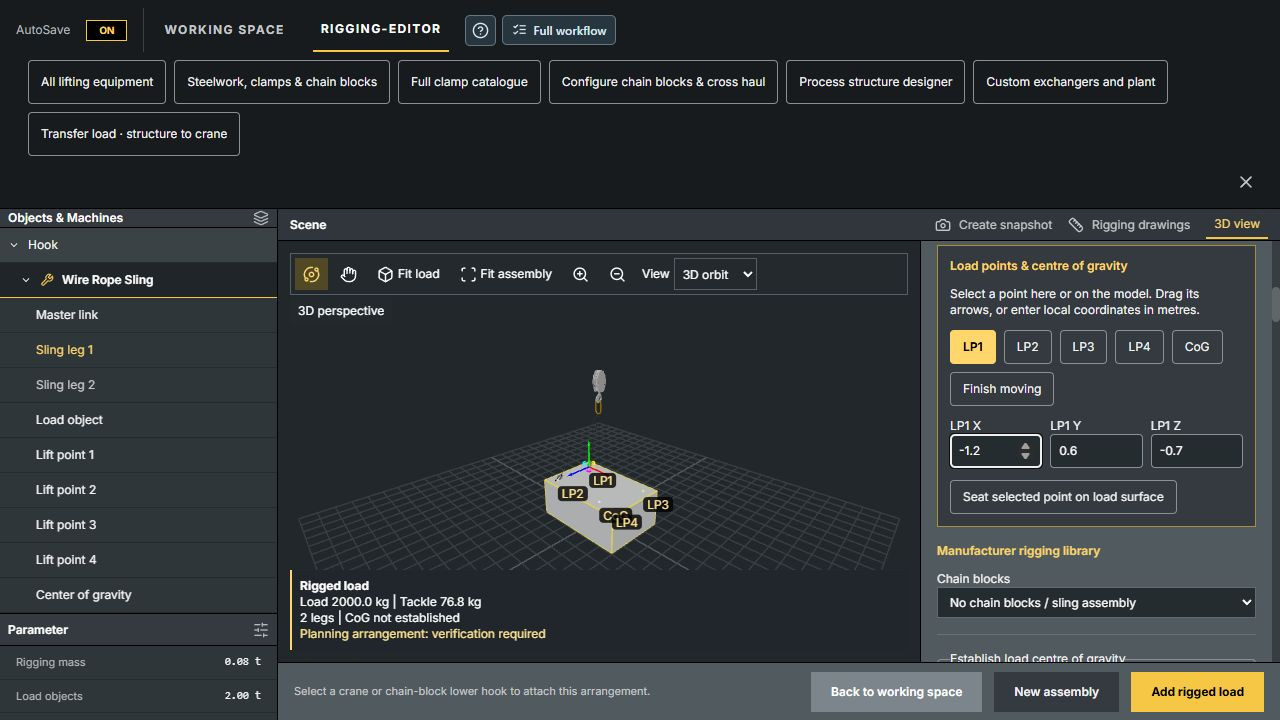
Choose a 2-, 3- or 4-leg sling configuration. Move lift points and CoG, seat a point on the load surface, and choose each leg’s attachment, material, supplied length, diameter, WLL and shackle orientation.
Add 2, 3 or 4 dimensioned planning lugs to equipment, edit their bores and plates, and seat compatible catalogue shackles. Where lugs are unavailable, use basket, choker or double-wrap hitches with separate wrap stations. Attachment resistance and hitch capacity require review.
Record whole-load CoG evidence, use fitted eyebolt connection points and review supported level-lift setups. Moving the CoG invalidates the previous evidence so it can be reviewed again.
Connected fittings follow load movement and rotation. Plan supported beam-clamp, chain-block, cross-haul and structure-to-crane transfer arrangements alongside the crane scene.
Individual-leg editing describes geometry and supplied lengths; unequal-leg force distribution is not solved. Forces and utilisation stay marked NOT SOLVED, including in drawings. Documented level-lift calculations are a separate supported mode. Transfers currently use shared rigging settings; individual-leg transfer geometry is not supported.
Inside the software
Real application screenshots: crane modelling, editable rigging, manufacturer equipment, plant design and technical drawings. Select an image to enlarge it.
Demonstration models and planning examples. The latest rigging and plant captures show the live web version; desktop appearance and features vary by release.
A prepared LTM anatomy model in the 3D workspace, with the modelling ribbon and crane controls.
Assign moving parts and shared pivots, then preview boom, telescope, slew and hoist movement.
Capture plan and elevation views and include them with crane data, schedules and approval tables in the PDF report.
Live web editor: select a lifting point and move it in 3D or enter local coordinates. CoG evidence and calculation status stay visible in the arrangement.
Choose a published equipment configuration, inspect its 3D connection points and review its dimensions, catalogue rating and source documents. Shackle example shown.
Configure a shell-and-tube exchanger in the object library. Enter dimensions and design options, with mass and verification status recorded separately from illustrative geometry.
Get help with planning questions and document drafting. Review every engineering output and check the current allowance and usage pricing.
Explore Astra →Work through courses, lessons and knowledge checks. LPP Master adds practical project work and instructor-reviewed evidence.
View training courses →Find LPP professionals for CAD, simulation and lift-plan documentation, or contact product support about your workflow.
Find an LPP professional →Choose your workspace
Occasional lifting jobs
Each job includes its complete 2D lift plan, a linked 3D rigging scene, revisions and PDF export. No monthly renewal.
£9 once
1 job · £9 per job
£24 once
3 jobs · £8 per job
£35 once
5 jobs · £7 per job
Start each job within 12 months of purchase. Edit and export for 90 days after assignment. AI, GPU usage, extra file storage, Desktop and paid training are separate.
View plan packs and My lift plansPurchase availability is shown after sign-in. Cloud remains £50/month for ongoing workspace access.
Payment is required before access. No free trial. Creating an account or downloading an installer does not activate the software.
Own the 2026 desktop version.
£299once
Lifetime use of this version. No recurring desktop fee.
Cloud tools and subscriber resources.
£50/ month
Renews monthly until cancelled through billing.
Desktop ownership and cloud access together.
£249once
+ £50 / month
£299 due today, then £50/month. Cancel cloud through billing.
Prices in GBP. Stripe Checkout presents eligible payment methods, including cards and Google Pay where available. Review the final total and any applicable tax before paying. Existing subscriptions retain their agreed rate. Paid access is granted only after payment verification.
Follow the technical documentation for modelling, crane construction, rigging, simulation and lift plan reports.
Read the technical documentation →Product and licence support: support@liftplannerpro.co.uk
Prepare 2D site drawings, position 3D cranes and loads, arrange rigging and document the proposed lift sequence. Keep manufacturer references with the project. The responsible lifting team must verify the configuration, capacities, site conditions and final plan.
Explore the lift-planning workflowDesktop 2026 is £299 once for the purchased version. Cloud is £50 per month. Full Workflow combines £249 upfront for desktop with £50 per month for cloud. There is no free trial. Check current platform availability before purchasing.
Desktop releases and activationUse reference drawings, supported CAD imports and crane-component tools to prepare a model. A display mesh or reconstructed component is not certified manufacturer CAD. Retain the source, check dimensions and use the applicable load chart.
Read the technical guideNo. Use the route workspace to organise the proposed movement and reference information. Verify clearances, bridge restrictions, access, permissions and current conditions with the relevant authorities and a route survey before moving a load.
Explore the planning workflow